Setup guide
IPTV Setup Guides for All Devices & Apps
Clear, step-by-step setup for every screen you own — streaming sticks, Smart TVs, player apps, hardware boxes, phones and computers. Pick your device below and you will be watching in minutes.
Not subscribed yet? Start a 24-hour free trial first, then come back to set up your device.
Setup Guides by Device
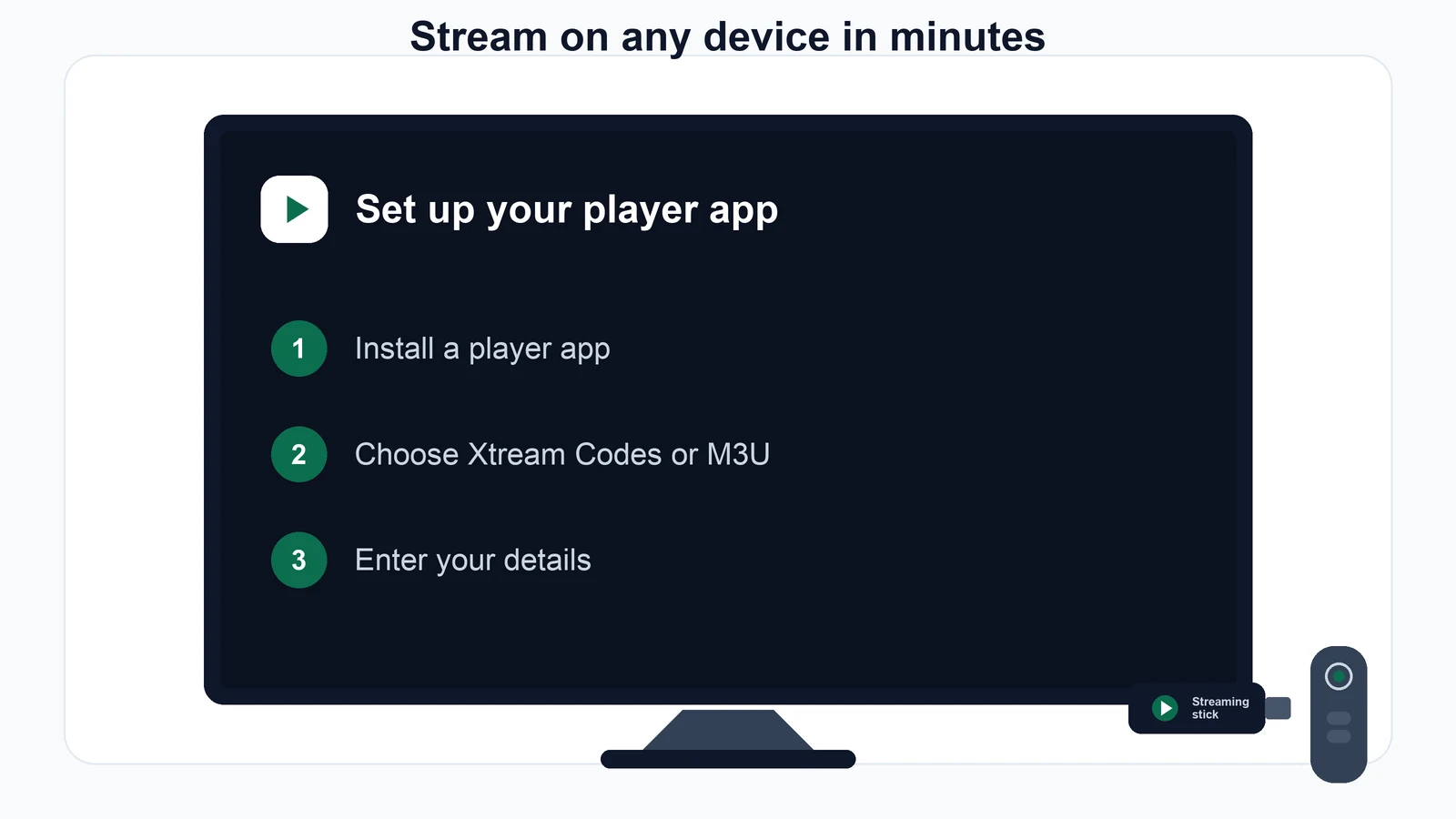
Every guide uses the same two building blocks: an Xtream Codes login (server, username, password) or an M3U playlist URL. We send whichever your app needs.
Fire TV Stick
Install a player app, then point it at the account details we send you.
- From the Fire TV home screen, open Find → Search and install a player app that supports Xtream Codes or M3U playlists.
- If your preferred player is not in the store, allow sideloading: Settings → My Fire TV → Developer options → Install unknown apps, then enable the browser or file app you will install it with.
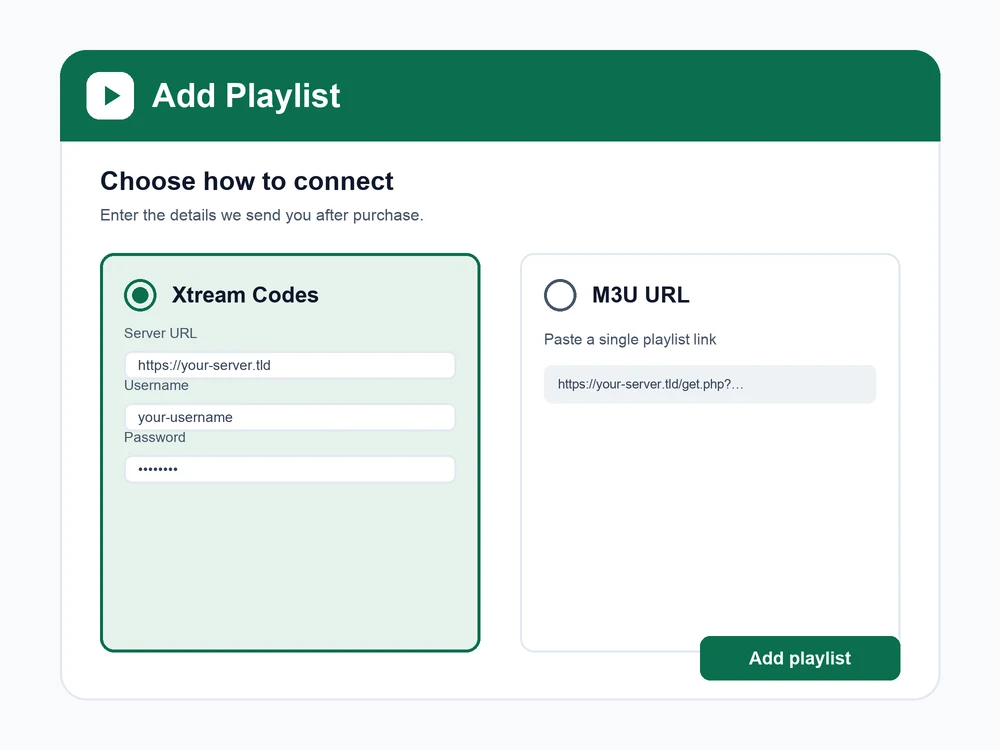
- Open the player app and choose Add playlist or Add user / Xtream Codes login.
- Enter the server URL, username and password we send you — or paste the M3U URL if the app asks for a single link.
- Let the channel list and TV guide (EPG) download, then start watching.
Buffering on a Fire TV Stick is usually memory, not the stream — close background apps and restart the stick before your first test.
Smart TVs (Tizen, WebOS, Android TV)
Android TV sets take a player app directly. Tizen and WebOS sets sometimes register the TV on the app's own website first — the app tells you which.
- Open your TV's app store and install a player app that supports Xtream Codes or M3U.
- If the app asks you to register the TV's MAC address on its website, follow its on-screen link, add your playlist there using the M3U URL we provide, then reopen the app.
- Otherwise, add your playlist inside the app directly — choose Xtream Codes login and enter the server, username and password, or paste the M3U URL.
- Open the app's EPG / TV guide settings and add the guide URL we send for a full programme guide.
- Save and let the channels and guide load.
On Tizen and WebOS, note the app's own web address and your TV's MAC from its info screen before you start — you will need both to add the playlist.
Player apps
Whichever player app you choose, the settings are the same. There are two ways to connect — use whichever your app offers.
- Open your player app and choose Add playlist, Add user or Add source.
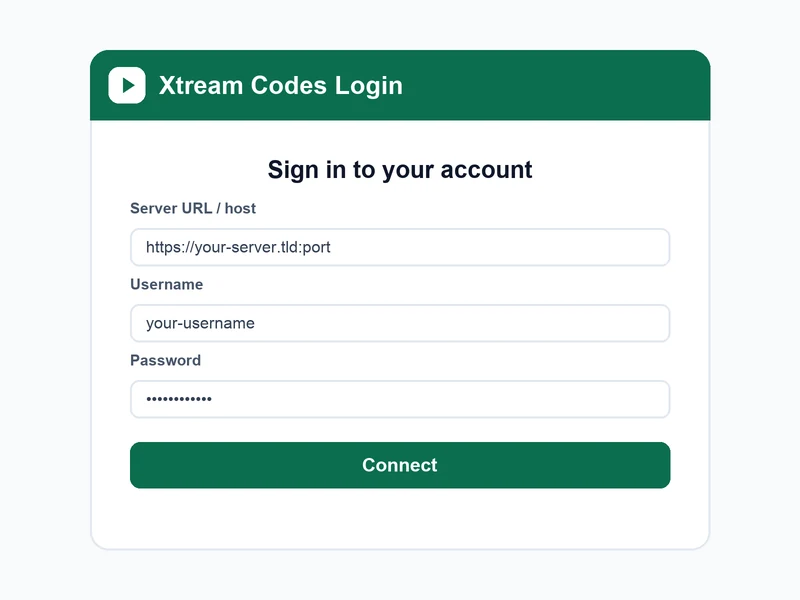
- Xtream Codes API: enter the Server URL / host, Username and Password exactly as we send them — this gives you live TV, films and series in one login.
- M3U: if the app only takes a link, paste the full M3U URL we provide instead.
- Add the EPG (XMLTV) URL in the app's guide settings so the programme guide fills in.
- Save and let the app download the channel list and guide — the first load can take a minute.
Type credentials carefully: they are case-sensitive, and a stray space at the start or end is the most common reason a login fails.
Hardware boxes (MAG, NVIDIA Shield)
MAG boxes use a portal address. Android-based boxes such as NVIDIA Shield work like any Android TV device.
- MAG box: go to Settings → System settings → Servers → Portals.
- Enter the portal URL we provide in the Portal 1 field, save, then restart the portal (or reboot the box).
- The box loads your channel list on start-up — no username or password to type on the MAG itself.
- NVIDIA Shield and other Android boxes: install a player app from the app store, then add your Xtream Codes login or M3U URL as above.
- Enter the credentials we send you and let the guide load.
Give us your MAG box's MAC address (on the box's underside and in its info screen) when you order — some portals lock to it.
Mobile & desktop
Handy for testing your trial before you set up the main TV.
- Phone or tablet: install a compatible player app, open it, and add your playlist with the Xtream Codes login or M3U URL.
- Windows or Mac: use a player app or a media player that opens M3U playlists — enter the Xtream Codes details or open the M3U URL we send.
- Add the EPG URL in the app's guide settings if you want the full programme guide.
- Sign in with the credentials we provide and let the channel list load.
A phone on your home Wi-Fi is the quickest way to confirm your login works before you set up the living-room TV.
Connection Formats & Login Details
These are the exact fields your app or box will ask for. We send your real values by WhatsApp or email — the examples below just show the shape of each one.
Xtream Codes API
One login for live TV, films and series. Use this whenever the app offers it.
- Server URL / host
- https://your-server.tld:port
- Username
- your-username
- Password
- your-password
M3U playlist URL
A single link that contains everything — for apps that only take a URL.
- Playlist URL
- https://your-server.tld:port/get.php?username=…&password=…&type=m3u_plus
EPG (guide) URL
The XMLTV feed that fills in the on-screen programme guide.
- XMLTV URL
- https://your-server.tld:port/xmltv.php?username=…&password=…
What we provide: your login credentials and playlist access only. The player apps, boxes and TVs are third-party software and hardware — choose whichever you prefer, and we will help you point it at your account. We cannot modify or support the apps themselves, but we can always help you enter the right details.
Need Help Setting Up Your Device?
Tell us what you are setting up and we will walk you through it, step by step, in plain English — most setups take a couple of minutes.
Prefer email? [email protected]- 99.9% uptime
- Instant activation
- 7-day guarantee